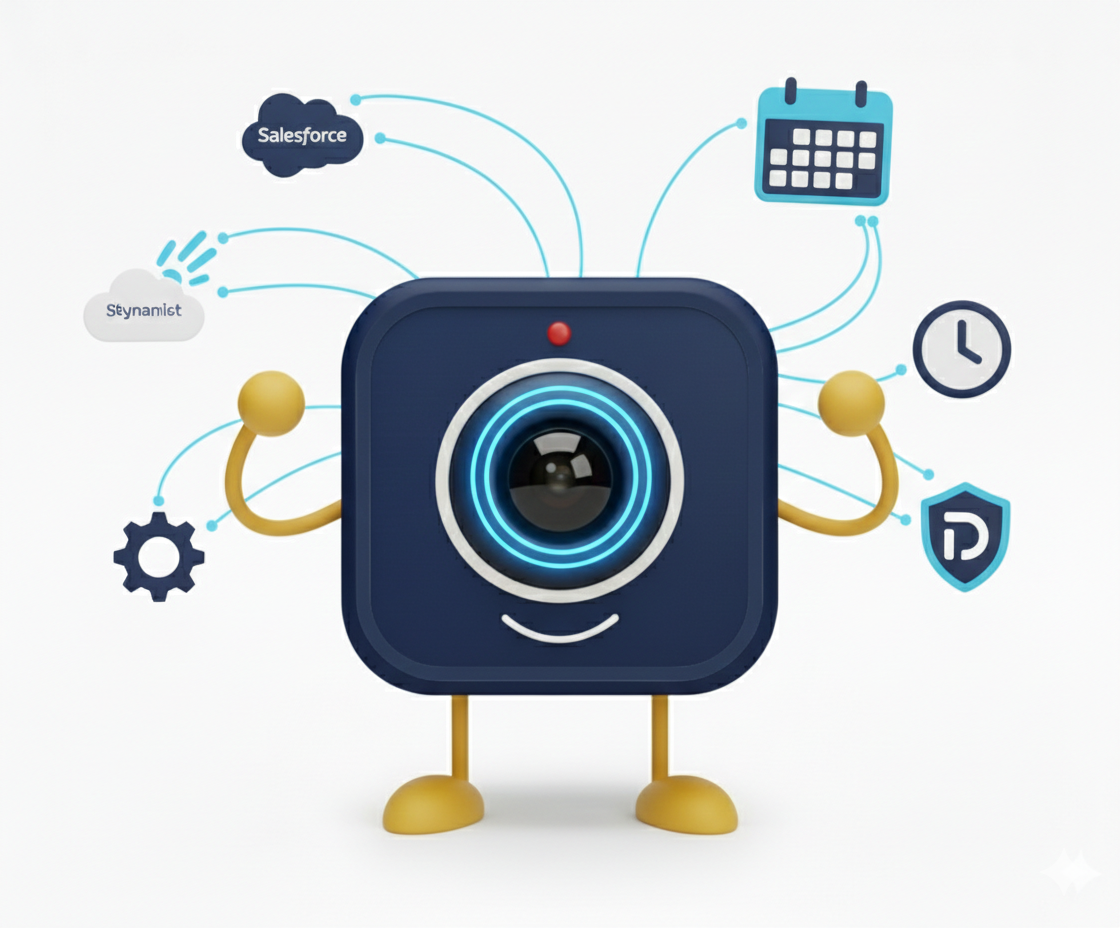
CRM and Calendar Integrations: Connect Your Meeting Data
Keep your CRM and calendars in sync with DigitalMeet. Pre-built connectors for Salesforce, HubSpot, and Microsoft Dynamics—plus a calendar integration framework—put meeting data where your team already works.
Why CRM Integration Matters
Meetings generate some of the most valuable data in any customer-facing organization: who attended, what was discussed, what was decided, which documents were shared, and how stakeholders felt about the conversation. When that data stays locked inside your video platform, your sales, support, and success teams work blind. They toggle between tabs, re-enter notes, and lose context between calls. CRM integration eliminates that friction by ensuring every customer interaction automatically flows into the systems your team uses daily—without manual data entry and without delay.
For revenue teams, this means richer deal histories. For support teams, it means faster case resolution. For leadership, it means accurate pipeline and engagement metrics built on real meeting data rather than guesswork.
Pre-Built Connectors: Salesforce, HubSpot, and Dynamics
DigitalMeet ships with production-ready connectors for the three CRM platforms that power the majority of enterprise organizations. Each connector is built to handle high-volume sync, configurable field mapping, and multiple authentication methods so deployment fits your existing security posture.
| Capability | Salesforce | HubSpot | Microsoft Dynamics |
|---|---|---|---|
| Record type created | Case or custom object | Ticket / Contact activity | Incident with annotations |
| Authentication | OAuth 2.0 (JWT bearer) | OAuth 2.0 / API key | OAuth 2.0 (Azure AD) |
| Field mapping | Configurable per object | Configurable per object | Configurable per entity |
| Transcript sync | Yes — attached as file or rich text | Yes — timeline note | Yes — annotation attachment |
| AI summary sync | Yes | Yes | Yes |
| Recording link | Yes — secure signed URL | Yes — secure signed URL | Yes — secure signed URL |
| Emotion & sentiment | Custom fields | Custom properties | Custom fields |
| Bi-directional sync | Contact lookup | Contact lookup | Contact lookup |
| Webhook fallback | Yes | Yes | Yes |
How Connector Sync Works
- A meeting completes and DigitalMeet fires an internal event containing metadata, transcript, summary, and media links.
- The integration service matches participants to CRM contacts via email or external ID.
- The connector creates or updates the configured record type using the mapped fields.
- Attachments (transcripts, summaries, recordings) are linked or uploaded depending on your CRM's storage model.
- A sync receipt is logged in the DigitalMeet admin console for auditing.
Tip: Use the webhook fallback for any CRM not listed above. DigitalMeet can POST meeting payloads to any HTTPS endpoint, so custom or niche CRMs are still supported.
What Gets Synced
When a meeting completes, the connector can push a comprehensive dataset into the corresponding CRM record:
- Meeting metadata — title, start/end time, duration, participant list, meeting type
- Full transcript — timestamped, speaker-labeled text
- AI-generated summary — key points, action items, decisions
- Document links — shared files, signed documents, presentation decks
- Signature status — whether documents were e-signed during the meeting
- Emotion and sentiment data — per-participant sentiment scores and engagement metrics
- Post-call insights — talk-to-listen ratio, keyword frequency, next steps
The result is a single source of truth for the entire customer journey—every call, every decision, every follow-up—inside the CRM your team already lives in.
Calendar Integration Framework
Beyond CRM, DigitalMeet provides a calendar integration framework so organizations can connect their scheduling tools and keep availability, invites, and meeting links in sync.
| Feature | Google Calendar | Microsoft Outlook | CalDAV (generic) |
|---|---|---|---|
| One-click scheduling | Yes | Yes | Yes |
| Availability lookup | Free/busy API | Graph API | VFREEBUSY |
| Auto-add meeting link | Yes | Yes | Yes |
| Recurring meeting support | Yes | Yes | Partial |
| Calendar sync direction | Bi-directional | Bi-directional | Push only |
| Auth method | OAuth 2.0 | OAuth 2.0 (Azure AD) | Basic / OAuth |
Schedule meetings from your calendar, see availability in one place, and avoid double-booking. When a calendar event is created with a DigitalMeet link, the platform automatically provisions the room, applies org policies, and sets recording and transcription defaults based on the meeting type.
Setting Up Calendar Sync
- Open the DigitalMeet admin console and navigate to Integrations > Calendar.
- Select your calendar provider and authenticate with OAuth.
- Choose which user groups or teams should have calendar sync enabled.
- Configure defaults: auto-add meeting links, sync direction, and recurring meeting behavior.
- Save and test with a sample meeting invite.
Getting Started with Integrations
Admins configure CRM and calendar integrations from the DigitalMeet admin console under Integrations. Once credentials and field mappings are set, sync runs automatically after meetings end. There is no per-user setup required—your team keeps working in the tools they know while DigitalMeet keeps data flowing in the background.
Important: Review your organization's data sharing policies before enabling CRM sync. Meeting transcripts and sentiment data may contain sensitive information that should be restricted to specific CRM roles. See Security and Privacy for guidance.
Frequently Asked Questions
Can I sync meeting data to a CRM not listed here?
Yes. Use the webhook integration to POST meeting payloads to any HTTPS endpoint, or build a custom connector using the DigitalMeet API. For details on webhook configuration, see Automations and Workflows.
Does sync happen in real time?
Sync triggers when a meeting ends. Depending on transcript and summary processing time, CRM records are typically updated within one to three minutes of meeting completion.
Can I choose which fields are synced?
Yes. Each connector supports configurable field mapping so you control exactly which meeting data lands in which CRM fields. Sensitive fields like emotion scores can be excluded.
Is calendar sync bi-directional?
For Google Calendar and Microsoft Outlook, sync is bi-directional: changes in either system are reflected in the other. CalDAV providers support push-only sync by default.
What authentication methods are supported?
OAuth 2.0 is the primary method for all connectors. Salesforce also supports JWT bearer tokens, and HubSpot supports API keys for legacy setups. We recommend OAuth for security and token rotation.
Can I restrict integrations to specific teams?
Yes. Integration scoping lets admins enable CRM or calendar sync for specific user groups or meeting types, so only the right data flows to the right systems.
How do I troubleshoot sync failures?
The admin console shows a sync log with status, timestamps, and error details for every integration event. Common issues include expired OAuth tokens, field mapping mismatches, and CRM rate limits—each with actionable resolution steps.
Does the integration support custom objects?
Salesforce and Dynamics connectors support custom objects and entities. HubSpot supports custom properties on standard objects. Contact your DigitalMeet account team for complex schema requirements.
Ready to connect your meeting data to your CRM and calendar? Explore DigitalMeet's integration options and put every conversation in context.