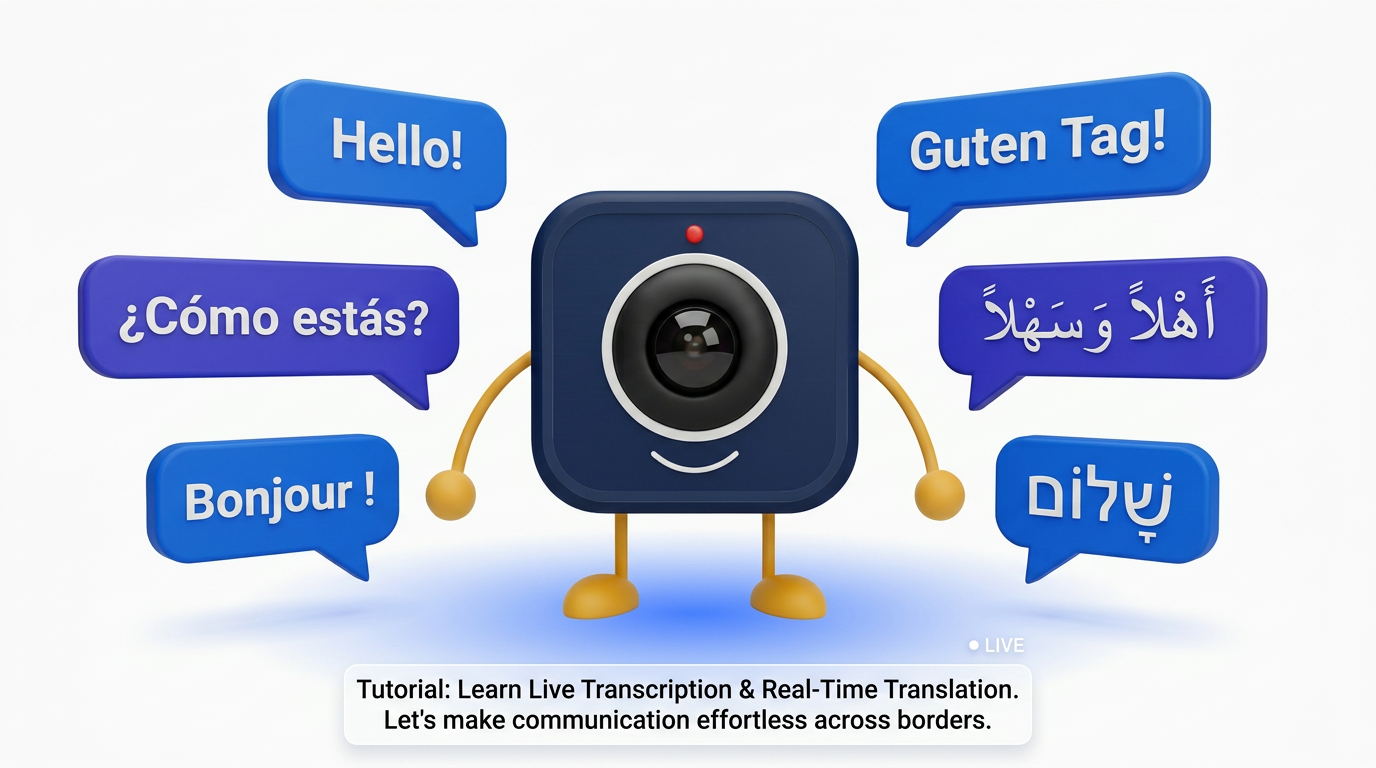
How to Enable Live Transcription and Real-Time Translation
Global teams expect captions, transcripts, and live translation—not as extras, but as defaults. This tutorial walks admins through enabling live transcription and real-time translation in DigitalMeet, from initial configuration to language selection, storage, and user training.
Why Enable Transcription and Translation
Accurate captions improve accessibility for deaf and hard-of-hearing participants, reduce misunderstandings across accents and dialects, and create searchable records for people who could not attend live. Live translation lowers the language barrier for distributed teams and customer-facing calls, enabling real-time comprehension without waiting for post-meeting summaries. Together, transcription and translation support compliance-friendly documentation when combined with clear consent and retention policies.
For organizations operating across language boundaries, these features are not nice-to-haves—they are operational necessities that directly impact meeting effectiveness, inclusivity, and knowledge capture.
Step 1: Confirm Roles and Policies
Only administrators (or delegated roles with the appropriate permissions) should enable org-wide transcription and translation. Before rolling out, align with your legal and compliance teams on transcript storage, consent requirements, and retention timelines.
- Verify you have Admin or Compliance Admin role in the DigitalMeet admin console.
- Review your organization's recording and transcript retention policy.
- Confirm consent requirements for your jurisdictions—see our GDPR guide and recording laws overview.
- Document the approved languages and meeting types for transcription and translation.
Important: In many jurisdictions, transcripts are treated the same as recordings under privacy law. Ensure your consent notification covers both recording and transcription before enabling these features.
Step 2: Turn On Transcription in Admin
In the DigitalMeet admin console, navigate to Meeting Settings > Transcription & Translation.
- Toggle Enable Live Transcription to on.
- Select the meeting types that should have transcription enabled (or enable for all).
- Choose the default transcription language.
- Enable Speaker Diarization to label speakers in the transcript.
- Choose whether transcripts are saved with the meeting recording or stored separately.
- For automatic capture starting when the host joins, mirror the pattern described in recording and transcription setup.
Supported Languages for Transcription
| Language | Code | Live Transcription | Accuracy (clear audio) | Vocabulary Hints |
|---|---|---|---|---|
| English | en | Yes | 96%+ | Supported |
| Spanish | es | Yes | 94%+ | Supported |
| French | fr | Yes | 94%+ | Supported |
| German | de | Yes | 93%+ | Supported |
| Portuguese | pt | Yes | 93%+ | Supported |
| Italian | it | Yes | 92%+ | Supported |
| Dutch | nl | Yes | 91%+ | Supported |
| Japanese | ja | Yes | 90%+ | Supported |
| Korean | ko | Yes | 90%+ | Supported |
| Mandarin Chinese | zh | Yes | 91%+ | Supported |
| Arabic | ar | Yes | 89%+ | Supported |
| Hebrew | he | Yes | 90%+ | Supported |
| Hindi | hi | Yes | 88%+ | Supported |
| Russian | ru | Yes | 91%+ | Supported |
| Turkish | tr | Yes | 90%+ | Supported |
| Polish | pl | Yes | 89%+ | Supported |
Tip: Add industry-specific terms, product names, and proper nouns to the Vocabulary Hints list under Transcription Settings > Custom Vocabulary. This can improve accuracy by 2–5 percentage points for specialized terminology.
Step 3: Enable Real-Time Translation
With transcription active, enable real-time translation so participants can view captions in their preferred language.
- Navigate to Meeting Settings > Transcription & Translation > Translation.
- Toggle Enable Real-Time Translation to on.
- Select the translation channels: Subtitles (on-screen captions), Audio overlay (synthesized speech), or both.
- Choose the supported language pairs for your organization.
- Configure whether participants can override their display language during a meeting.
- Save and test with a multilingual meeting.
Translation Feature Comparison
| Feature | Subtitle Translation | Audio Overlay Translation |
|---|---|---|
| Delivery method | On-screen text captions | Synthesized voice in target language |
| Latency | 1–3 seconds | 3–6 seconds |
| Languages supported | All 16 transcription languages | Top 10 languages |
| Speaker identification | Yes — labeled per speaker | Single synthesized voice |
| Participant control | Choose display language per user | Choose audio language per user |
| Mobile support | Yes | Yes (plan dependent) |
| Bandwidth impact | Minimal (text only) | Moderate (additional audio stream) |
| Accessibility | High — visual and screen-reader friendly | High — auditory assistance |
Translation Accuracy by Language Pair
| Source Language | Target Language | Translation Accuracy | Notes |
|---|---|---|---|
| English | Spanish | 95%+ | High-resource pair, excellent quality |
| English | French | 95%+ | High-resource pair, excellent quality |
| English | German | 94%+ | Strong quality, compound word handling |
| English | Japanese | 91%+ | Good quality, honorific context supported |
| English | Mandarin | 92%+ | Strong quality, simplified and traditional |
| English | Arabic | 90%+ | Good quality, RTL rendering supported |
| English | Hebrew | 91%+ | Good quality, RTL rendering supported |
| Spanish | English | 95%+ | High-resource pair |
| French | English | 95%+ | High-resource pair |
| German | English | 94%+ | Strong quality |
Step 4: Storage, Residency, and Retention
Transcripts and translation artifacts are stored data subject to the same residency and retention rules as recordings. Configure them consistently.
- Route transcripts to the correct region using data residency settings.
- Set retention policies so transcripts are not kept longer than your policy requires.
- Enable export-before-delete if compliance requires archival.
- For detailed storage and residency configuration, see Setting Up Data Residency.
Important: Translation artifacts (the translated text) are stored alongside the original transcript. If your data residency policy requires that all language versions be stored in a specific region, ensure the boundary configuration covers both original and translated content.
Step 5: Train Hosts and Attendees
Technology is only effective when people know how to use it. Share clear guidance with your meeting hosts and participants.
- For hosts: How to verify transcription is active, how to set the meeting language, how to enable translation for participants, and how to handle quality issues.
- For attendees: How to view captions, how to switch their display or audio language, and how to report transcription errors.
- For everyone: Encourage structured agendas, clear speaking turns, and good microphone practice—clear audio dramatically improves both transcription and translation quality.
- Create a one-page internal guide covering the above points.
- Run a pilot meeting with a multilingual group to test the experience.
- Collect feedback and adjust language pairs, vocabulary hints, and translation channels before full rollout.
- Monitor transcription quality in the admin console and add vocabulary hints for frequently misrecognized terms.
Step 6: Monitor Quality and Iterate
After rollout, use the admin console's transcription quality dashboard to track accuracy rates per language, identify common errors, and refine your vocabulary hints. Translation quality metrics show per-language-pair accuracy and participant satisfaction scores.
- Navigate to Admin Console > Analytics > Transcription Quality.
- Review accuracy trends by language and meeting type.
- Identify languages or teams with below-target accuracy.
- Update vocabulary hints and investigate audio quality issues for underperforming segments.
- For platform-wide quality metrics, see Enterprise Observability.
Frequently Asked Questions
Does transcription work on mobile?
Yes. Live transcription is available on mobile clients when enabled for the meeting type. The exact feature set depends on your plan and client version.
Who can download transcripts?
Transcript download permissions follow the same role-based access as recording downloads. Admins can view all transcripts; hosts see their own meetings; members see permitted meetings. Configure these in role and permission settings.
Can we disable translation for specific meetings?
Yes. Host and organization policies can restrict features per meeting type. Admins configure this in Meeting Settings; hosts can toggle translation on or off for individual meetings if permitted by policy.
How many languages can be active simultaneously?
Live transcription supports one source language per meeting. Translation can output to all configured target languages simultaneously—each participant chooses their preferred language independently.
Does translation support right-to-left languages?
Yes. Arabic and Hebrew translations render correctly in RTL layout for both subtitle captions and transcript exports.
What affects transcription accuracy?
Audio quality is the primary factor. Background noise, poor microphone placement, multiple simultaneous speakers, and heavy accents reduce accuracy. Vocabulary hints, speaker diarization, and clear speaking practices improve it.
Can I use transcription without recording?
Yes. Live transcription can run independently of recording. Transcripts can be saved without a corresponding video recording, though many organizations enable both for completeness.
How do I add custom vocabulary?
Navigate to Transcription Settings > Custom Vocabulary in the admin console. Add terms one at a time or upload a CSV. Changes take effect for new meetings immediately.
For recording setup that complements transcription, see Automated Recording and Transcription. For general platform setup, see Getting Started with DigitalMeet.